|
The Toast Go® 2 device is not available to customers outside of the US.
|
Not sure which Toast Go® device you have? Check out this Toast Central article, Identify Your Toast Hardware.
Click here for a printable guide to troubleshooting your Toast Go® 2 handheld device.
Always try these four steps FIRST:
-
Refresh your Toast app.
-
Restart your device.
-
Verify your card reader settings.
-
Check your device's Wi-Fi settings.
|
If you've attempted all troubleshooting steps and your device is out of warranty, check out Toast Shop to purchase a replacement for your handheld, a Toast Go® 2 Reader Repair Kit, or a Toast Go® 2 Battery Replacement Kit, as needed. If you need to replace your device, see Replace Faulty Hardware (RMA) for additional support.
In this Article:
If your Toast Go®2 is not responding or won't turn on, follow these steps:
- Ensure the device has been charged for at least 30 minutes.
- Press and hold just the Power button for 15 seconds until the device powers off and powers on again. You don't need to hold the volume up button while powering on the Toast Go® 2.

Watch the video or follow the steps below for further troubleshooting.
- Inspect your power supply cable. Make sure that each end is not frayed and that the rubber coating is intact along the entire cable. If your cable fails this inspection, contact Customer Care. If your cable passes, continue to the next step.
- Retrieve a known working cable to ensure your device is charged. Make sure it's connected and plugged into a working outlet. Charge your device for at least 5 minutes before evaluating the battery.
- Perform a hard reboot by holding down the volume up button and power button for 8 seconds. If your device powers on after this charge and reboots, your device is functioning correctly.
If your device doesn't power on, or the cable is damaged, then contact Toast Customer Care for additional support and reference code #508.
Back to top
If your Toast Go® 2 keeps disconnecting from the network, make sure you fully disconnect (forget) non-Toast networks so that you Toast Go® 2 remains connected to your Toast-managed network. Check out this Toast Central article, Forget a Network on a Toast Device, for instructions, or watch the video below.
Back to top
Watch this video or follow the steps below to troubleshoot if your Toast Go® 2 screen isn't functioning properly.
- Make sure your device is charged. Turn on the Toast Go® 2 by holding the power button until the Toast logo appears. If you still have a screen issue, continue to the next step.
- Check the device for liquid damage. You'll need to inspect for residue in all openings of the device. If you have liquid damage, this is unfortunately not covered under warranty. Visit the Toast Shop to purchase a new unit. If liquid residue is not present, continue to the next step.
- Check for a firmware update, as your Toast Go® 2 may need to be upgraded. Navigate to Settings > System > Advanced > System Updates > Check for Update.
- If an update is available, follow the prompts to download the latest firmware version. If the screen functions properly, you've resolved the issue.
- If there is no update available, or if the issue persists after updating, contact Toast Customer Care for additional support and reference code #509.
Back to top
If your Toast Go® 2 is showing the "No command" screen, press and hold the Power button for 15 seconds to force reboot the device.
Back to top
If your card reader isn't working on your Toast Go® 2, follow the below steps or watch this video:
- Restart your Toast Go® 2 by pressing and holding the power button until the Power Off option appears, then tap it to power off the device.
- Then, go to the Quick Order screen and select Tab to wake up the reader. At this point, the card indicator light on the side of the device should be green. If it's red or no light appears, continue to the next step.
- If dip and tap payments are not working but swipe payments are accepted by your card reader, double-check that EMV is enabled on your device. For a refresher on setting up EMV for the Toast Go® 2, check out this Toast Central article, Set Up Your Toast Go® 2.
- If EMV is enabled but the card indicator light is red or no light appears, use the Card Reader Test App by following the steps below.
Use the Card Reader Test App:
- Select the circular Home button at the bottom of your device screen.
- Then, select Card Reader Test App.
- On the following screen, select the corresponding button to test the dip (insert), swipe (magnetic stripe), and tap (NFC) functions of your card reader.
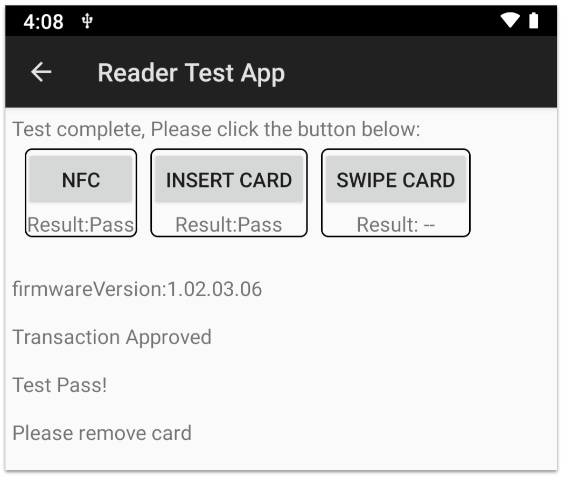
If you see Result: Fail, contact Toast Customer Care and reference code #505.
If you see Result: Pass, perform the following steps:
- Exit the Reader Test App.
- Go to Settings > Apps & notifications > Toast POS > Advanced > Open by default > Clear defaults.
- Turn off your device, then turn it back on.
- Open the Toast app.
- Log in using your Toast credentials.
- Retry the payment.
If the payment fails, contact Toast Customer Care and reference code #505.
Back to top
If your Toast Go®2 credit card tap is not working, it may be due to where the NFC coil is located inside each card. Each tap-enabled credit card had an NFC coil inside. This coil powers the credit card chip when it's close to the card reader. However, each card is made differently and the coil is not always located in the same spot in each card.
Toast recommends placing the card horizontally, aligning with the top of the Toast Go® 2 device. Then, move the card a little to the left or right. Once the Contactless Reader detects where the coil is, it will read.
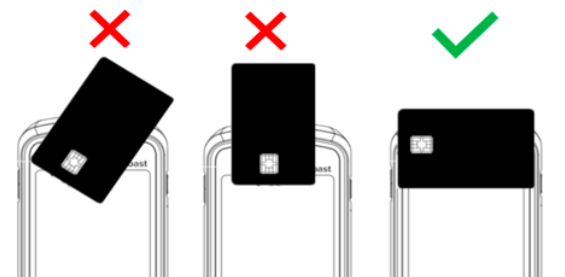
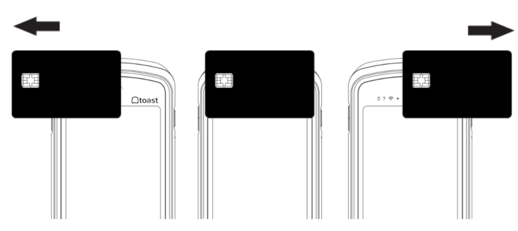
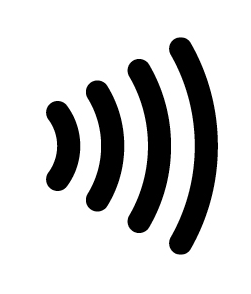
Note: When using the contactless reader, it's important you hold the credit card correctly. Make sure guests center the credit card horizontally and align the credit card with the top of the device. Additionally, not all cards can be used by tapping. Check the card and make sure there is an NFC symbol on it:
Back to top
If your Toast Go® 2 reader feels like it is difficult to insert cards into the reader, this may be due to how it was made.To prevent water and foreign materials from entering the device, the Toast Go® 2 EMV card slot was made more compact. Although it seems like a tight fit, this is to extend the life of your card reader.
Back to top
If your Toast app won't start on your Toast Go® 2, force quit and relaunch the Toast app. If the problem persists, perform the following steps:
- Perform a force stop and clear cache on the Toast POS app. Navigate to the handheld homescreen and open the Android settings.
- Select Apps > Toast POS > Storage > Clear Cache > Force Stop Toast POS app.
- Relaunch the Toast POS app to see if it will load. If not, proceed with uninstalling and reinstalling the Toast POS app.
- Before uninstalling the app or factory resetting, ensure that all your payments are uploaded to the cloud to avoid losing credit card transactions. You can do this by following these steps:
- Ensure the device is online and connected to the Toast Web.
- From the Toast app, select the 3-dot menu in the top right corner, then select Device Status. On the Status screen, confirm that the device is online.
- Open the Queues tab and ensure that all payments have been uploaded to the cloud by making sure that all of the queue fields have "0" listed on the right side.
- Relaunch the Toast app to see if it will load.
- If the Toast app is still not launching, contact Toast Customer Care.
Back to top
If your orders from your handhelds aren't printing in the kitchen, your Toast Go® may be connected to the wrong wireless network. In order for Toast Go® devices to communicate with the printers, they must be connected to the Toast Enhanced Security Network.
A red banner will be displayed across your screen indicating that you have no internet connection. Once you try to print something a pop-up will arise. From here, select Join Toast network.
Once reconnected, you'll receive a message that says, "Successfully connected! Your print will resume shortly. Please wait a few seconds for the printer". If the connection cannot be re-established, select Join Toast network once more.
If your Toast Go® 2 still won't connect to the Toast Enhanced Security Network to print kitchen tickets, watch this video or follow the troubleshooting steps below:
- Are orders from other devices printing on this printer as expected?
- If yes, or there are no other devices present, proceed to the next step.
- If no, run a test print by turning the printer off, then holding the feed button and powering the printer back on until the IP ticket is printed. If this works, proceed to the next step. If this doesn't work, see this Toast Central article, Get Help: My Printer Isn't Working, for advice on your specific printer model.
- Is the printer selected as the desired receipt printer for this device? This can be verified by navigating to the Device Setup > Receipt Printer from the Toast app main menu.
- If yes, proceed to the next step.
- If no, select the desired printer from the available list of printers within the Receipt Printer menu. If it doesn't appear, see this Toast Central article, Get Help: My Printer Isn't Working, for advice on your specific printer model.
- Is your Toast Go® 2 on the proper network? The network is usually named _TOAST (Toast Router) or _SECURED (Meraki).
- If yes, forget the network, reconnect to the network, and attempt to reprint the order. If this doesn't resolve the issue, force stop the app, clear the cache under Applications > Toast, and power cycle the device. Attempt to print the order again. If this does not resolve the issue, proceed to the next step.
- If you need to find your Wi-Fi password for your Toast Netword follow the directions in this Toast Central article, Locate Your Toast Wi-Fi Password.
- Is the printer on the same network as the handheld? If you are unsure, follow step 1 to print the IP ticket. Compare the first three octets on the IP ticket to the IP network. For example, if both IP addresses begin with "192.168.192", that will be confirmation that both are on the same network.
- If the printer is on the same network, proceed to the next step.
- If the printer is not on the same network, check the cable routing and ensure that the printer's ethernet cable is plugged into the main router. Attempt to print the order again. If this does not resolve the issue, proceed to the next step.
- Check prep station setup and item routing. Per the Set Up Your Printers section of this Toast Central article, Create and Assign Prep Stations, for instructions on how to ensure (using the Printer Wizard on the Toast app) that the printer intended for this prep station is configured properly.
- If the printer is not configured properly, address the necessary issues and attempt to print the order again. If this doesn't resolve the issue, proceed to the next step.
- If the printer is configured properly, proceed to the next step.
- Is your Toast Go® 2 and corresponding printer both within the limits of the network or access point range? To maintain stable network connectivity, the nearest Wi-Fi access point should be 100 - 115 feet away or less. A Wi-Fi access point is usually located on the wall or ceiling and looks like a white disc. It should be lit up with a blue circular light to indicate it is powered on and online.
- If no, bring the Toast Go® 2 handheld within the accepted range of the access point and attempt to print the order again. If this doesn't resolve the issue and the device is under warranty, contact Customer Care and reference code #506. If the device is not under warranty, visit the Toast Shop for replacement device options.
- If yes, and the device is under warranty, contact Customer Care and reference code #506. If the device is not under warranty, visit the Toast Shop for replacement device options.
Watch the video or follow the steps below if the buttons on your Toast Go® 2 are stuck.
- Start by performing a tactility test by pressing down the power and volume buttons one by one. If you feel each button push in and resurface normally, the hardware is functioning correctly.
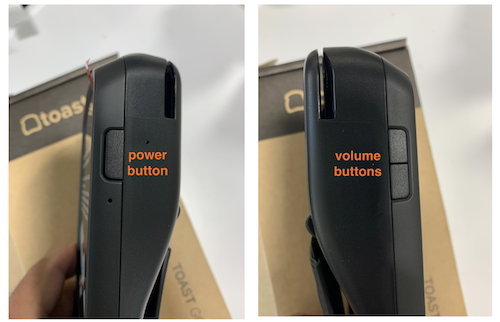
- Additionally, make sure your Toast Go® 2 is charged.
If the buttons depress and do not resurface, and your device is under warranty, please contact Toast Customer Care and reference code #507.
Back to top
Unfortunately, if the case for your Toast Go® 2 is cracked, there isn't a way to fix it and you will need to contact Toast Customer Care for additional support.
Back to top
If your handheld is not accepting card payments and you've tried all of the troubleshooting steps at the top of this article, your device may require a firmware update.
- Navigate to Settings > System > Advanced > System Updates > Check for Update.
- If an update is available, follow the prompts to download the latest firmware version.
Back to top
Toast Go® 2 is receiving an "Obtaining IP address" error
If your handheld is receiving an "Obtaining IP address" error, it means that your Wi-Fi source has power, but no internet connection. If you use a Toast-managed network with Unifi wireless access points, they will show a blue light. If you use a Toast-managed network with Pronto access points, they will show purple. To learn more, see Verify Your Internet Connection.
Back to top
What if my Toast Go® 2 gets wet?
Although your Toast Go® 2 is water resistant, that doesn't mean it wants to go for a swim! Toast recommends keeping your Toast Go® 2 away from water areas such as sinks, cleaning buckets, etc. If your Toast Go® 2 does get exceedingly wet, follow these troubleshooting steps:
- Immediately turn off your Toast Go® 2.
- Wipe off the wet area as much as possible, starting with the dip and swipe area first. For a diagram of the swipe, dip, and tap regions on the device, check out this Toast Central article, Set Up Your Toast Go® 2.
- Let the Toast Go® 2 dry completely before turning it back on. Keep in mind, this could take a full day or two.
How do I clean my Toast Go® 2?
For daily Toast Go®2 cleaning, follow these steps:
- Power off the device.
- Dampen a clean cloth with water or screen cleaner and gently wipe down the device.
- Let the device air dry for a few minutes before turning back on.
For a more thorough Toast Go®2 cleaning:
- Power off the device.
- Spray 70% IPA (isopropyl alcohol) onto a clean cloth and gently wipe down the device.
- Let the device air dry for a few minutes before turning back on.
- If needed, use a microfiber cloth to gently wipe the screen.
Note: Never spray cleaning products directly onto the device. Always use a clean cloth. This will prevent liquid from getting into open ports or other areas like the card reader.
Will manager swipe cards work with my Toast Go® 2?
Note: Toast Access Cards will soon replace Manager Swipe Cards. Like Manager Swipe Cards, Toast Access Cards enable secure logins and manager approvals via swipe. If a Manager Swipe Card is initially set up on a Toast Go® 2, it will not work on a Toast Go® 3. However, if the card is set up on a Toast Go® 3, it will work on a Toast Go® 2. For more information, see Manage Employee/Manager Swipe Cards.
Manager swipe cards set up on devices that use Toast Tap™ or card readers similar to the Toast Tap™can be used on Toast Go® 2s. Manager swipe cards set up on Toast Go® 1s and other devices that use the eDynamo or Magnetic Stripe card readers will not be compatible with Toast Go® 2s.
Use the following table for more details on which devices your manager swipe cards can be used:
|
Toast Tap™Reader Devices
|
|
The devices in this column use the same card reader and can use manager swipe cards interchangeably.
Note: These devices cannot accept a manager swipe card set up on a device with an eDynamo or MSR card reader.
|
|
Toast Go® 2
|
|
Toast Tap™(Direct Attach)
|
|
Toast Tap™(On-Counter)
|
Not sure what type of card reader you're looking at? Check out this Toast Central article: Identify Your Card Reader Type.
What do the status indicator lights mean on my Toast Go® 2?
|
Status Indicator Symbol
|
Description
|
|

|
Wi-Fi signal
Solid blue: Wi-Fi signal low, move to a stronger location.
Solid red: Wi-Fi is off or disconnected.
|
|

|
Device sync status
Blinking red question mark: Device contains an order that has not synced with the server.
Blinking blue question mark: Device is not syncing with other devices in your restaurant. Make sure your device is on the secure Toast Wi-Fi, then force quit and relaunch the Toast app. On the passcode screen, select the 3 dots in the top right corner and select Resync Orders.
|
|

|
Battery when Toast Go® 2 is unplugged (not charging)
Solid red: 10% battery life
Blinking red: 5% battery life
|
|
|
Battery when Toast Go® 2 is plugged in (charging)
Solid red: Battery is 0 - 84% charged.
Solid green: Battery is 85 - 100% charged
|
Back to top


