In this Article:
Termination Templates
- To access the termination template setup page, navigate to Settings > Status Changes.
- Custom templates can be created in order to either re-sequence or add/remove steps to the termination process. Select the edit pencil to modify or make changes to a termination template or select Add + to create a new termination template.
- The Default template cannot be edited.
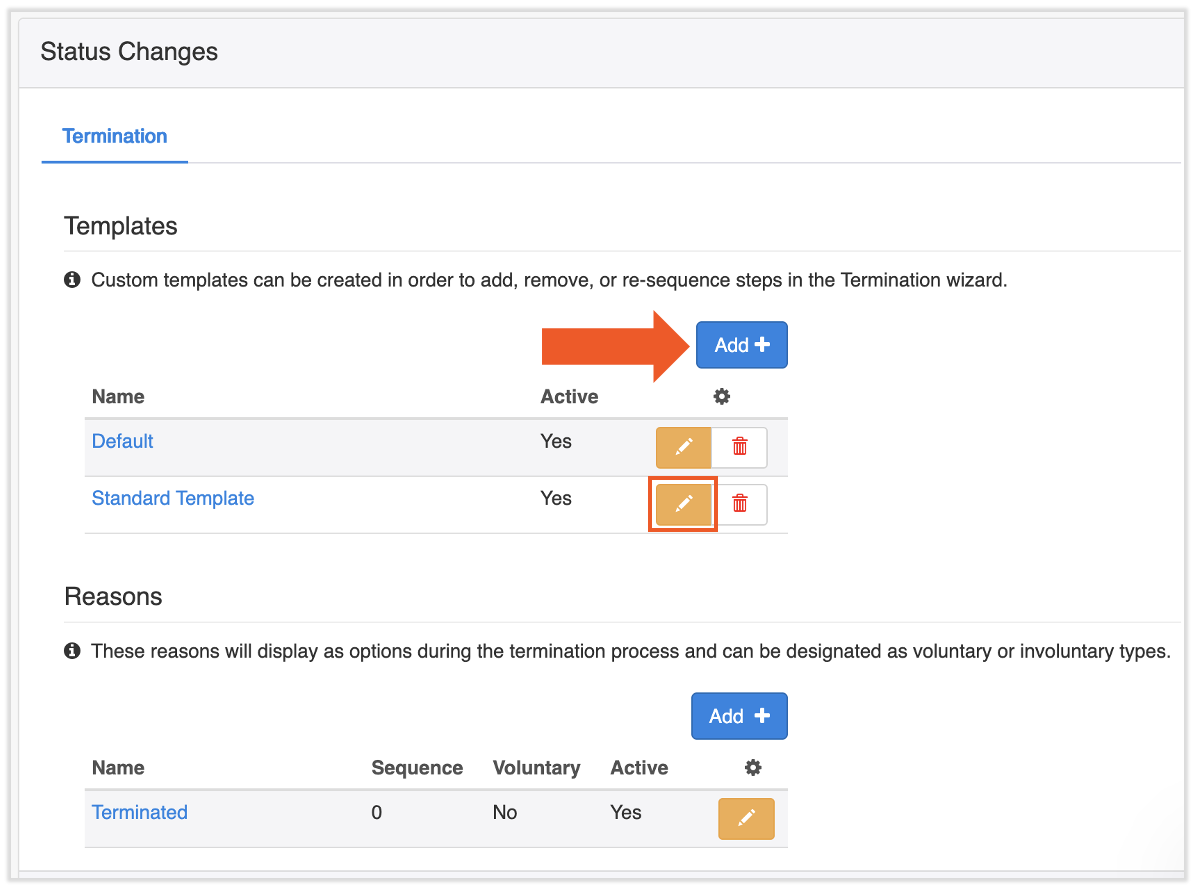
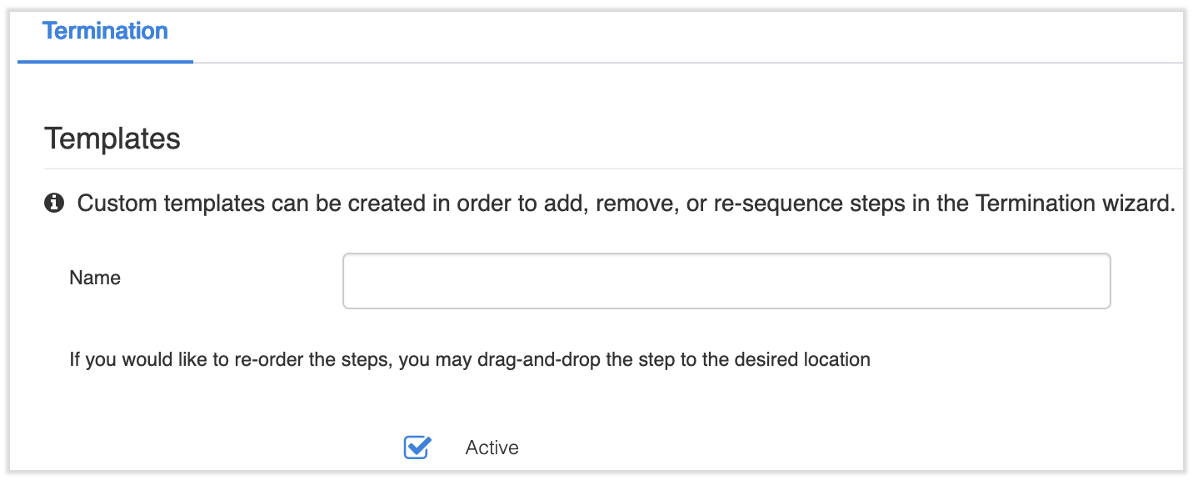
- If you're creating a new template, begin by naming it. A new template is automatically defaulted to active, but you may unselect the Active box if you wish.
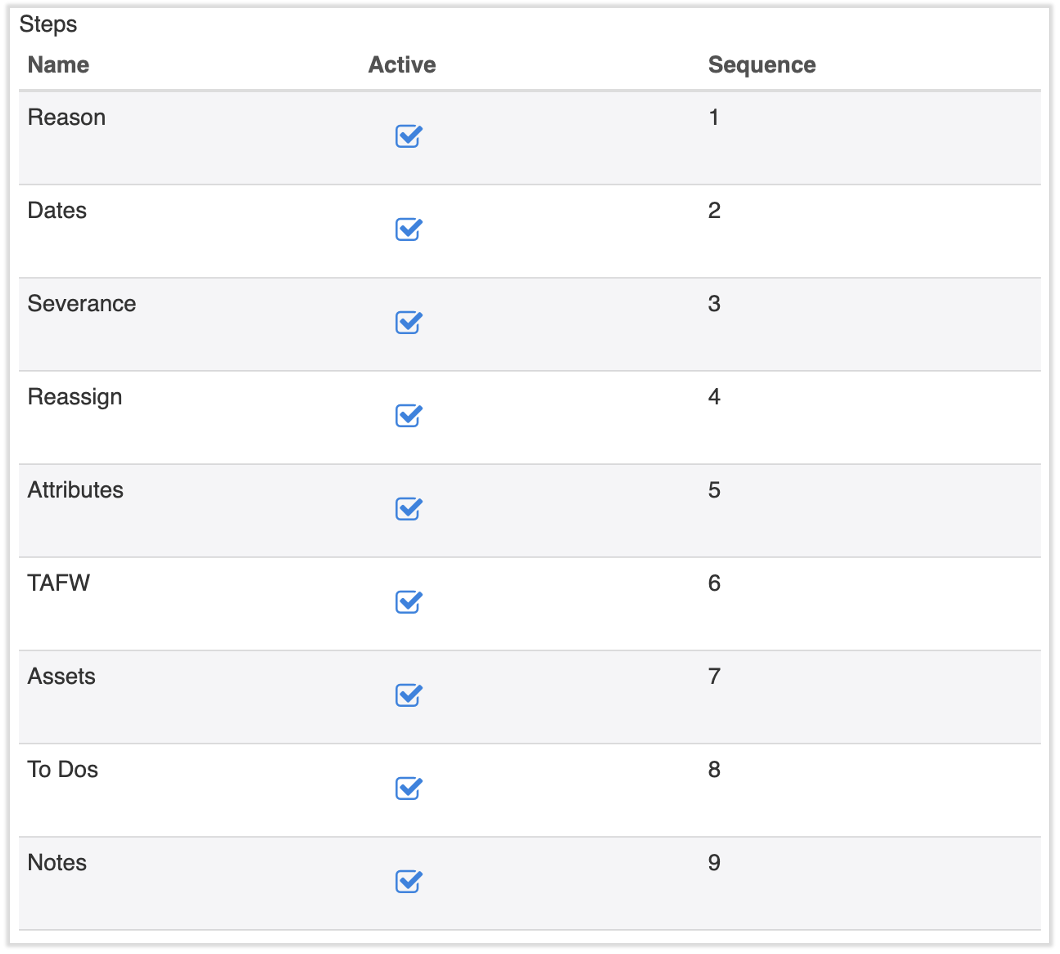
- Scroll down and select which steps you would like to include in the termination process by selecting or deselecting Active next to the step. While editing, you can drag-and-drop steps to re-sequence the order in which you would like the steps to fall in the termination process. Note: Reason, Dates, and Reassign are all required steps.
- Reason: Select a reason for termination.
- Dates: Select the payroll date, termination date, and benefits termination date
- Severance: Allows you to pay the employee a severance pay amount, which is added as a Payroll To Do
- Reassign: Reassign who the employee reports to in the database
- Attributes: Add various attributes about the terminated employee
- TAFW: Pay out TAFW (time away from work) for the employee (if you use this feature)
- Assets: Collect assets from the employee upon termination (if you use this feature)
- Select Save to finalize.
Back to top
Termination Reasons
- To access the termination reason setup page, navigate to Settings > Status Changes.
- Termination reasons are used to classify an employee's termination. Select the edit pencil to modify an existing reason or select Add + to create new termination reasons.
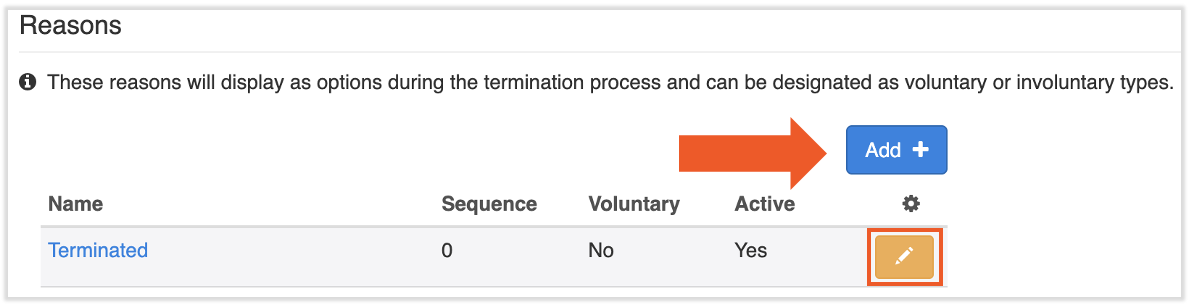
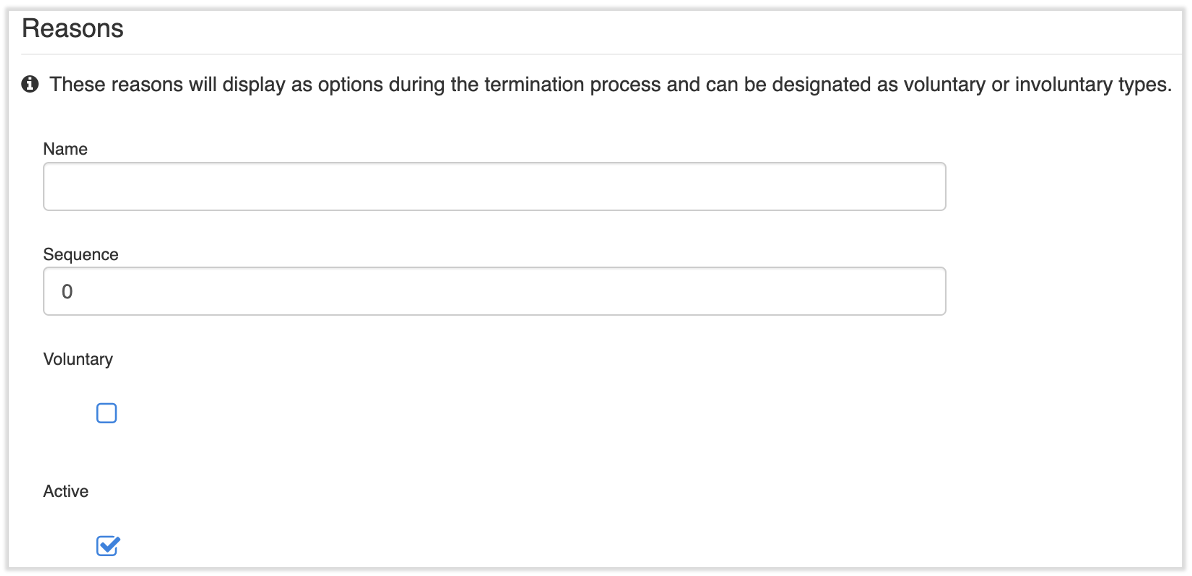
- If you're creating a new termination reason, begin by naming it. Example termination reasons could be Resigned, Released, or Back to School.
- Sequence: the order of these reasons in the termination template Reason step
- Voluntary: assists with classifying the termination and records a voluntary resignation date that you enter
- Active: if the reason is enabled or not
- Select Save to finalize.
Back to top
Additional Resources
This content is for informational purposes and is not intended as legal, tax, HR, or any other professional advice. Please contact an attorney or other professional for advice.


