In this Article:
Online Orders Not Firing With Pending Orders Overview
If you're wondering, "Why didn't my online order fire to the kitchen automatically?" It is important to remember that firing behavior for online pending orders can be impacted by Toast Web and device-level settings.
Back to top
Troubleshoot Online Ordering Printing
If you know an online order was submitted but did not fire at the expected time, the following steps can be taken to locate and fire that order.
- Check the Pending Orders screen for the order in question, as the order may be awaiting approval before it will fire. To do this, select the Toast icon in the top left corner and choose Pending Orders under Mode.
- If the order is not found under Pending Orders, locate your auto-firing device and ensure you do not have any non-printing prep stations set up on that device. If any are selected, de-select the prep stations that you want online orders to be able to send to.
- If you're using the Kitchen Display System to manage kitchen tickets, check your Ticket Filters on the device to ensure all of the dining options/courses used for your online orders are selected to display.
Back to top
Online Order Approval Method
Your restaurant's online ordering approval behavior can be set in Toast Web. You can follow these steps to configure it:
- First, navigate to Takeout & delivery > Availability > Online ordering in Toast Web.
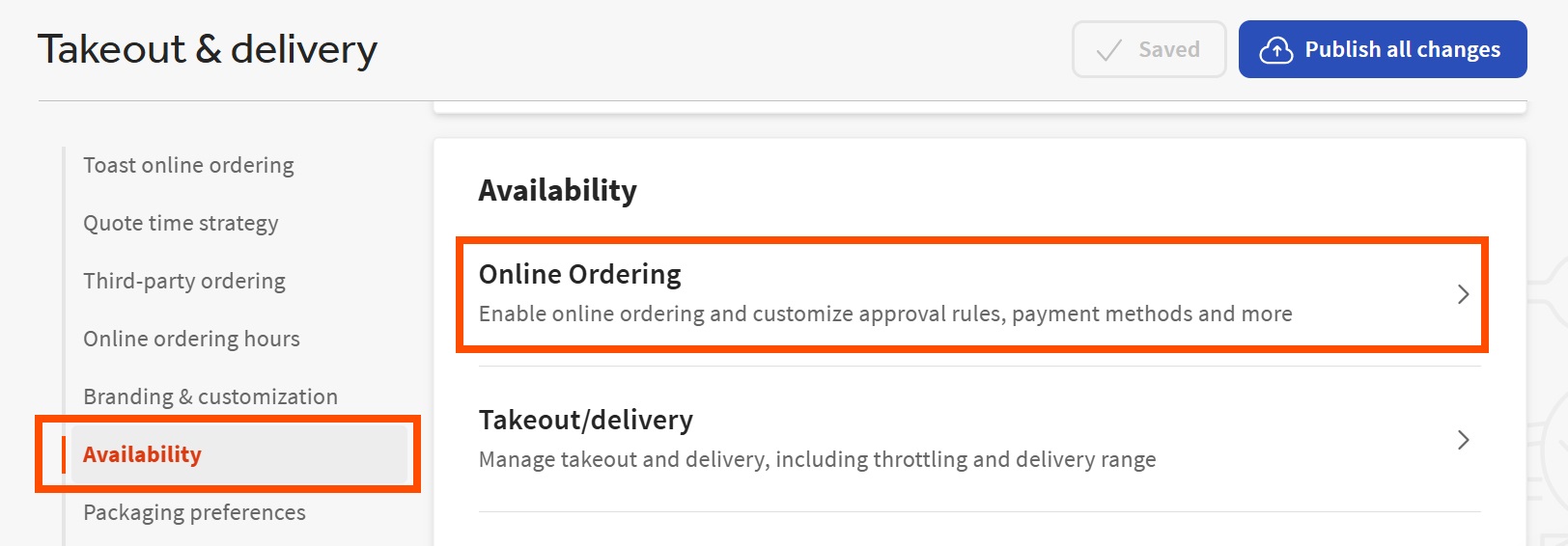
- Then, scroll down to the Approval section > Approval Mode.
- If Approve manually is selected, all orders will need to be approved from the Pending Orders screen before they will fire to the kitchen.
- If Send orders directly to kitchen is selected, check to ensure you have only ONE auto-firing device set up, as this device will be responsible for auto-approval and firing your orders to the kitchen at the appropriate time. Ensure the designated auto-firing device is online with wifi disabled (auto-firers should ideally be connected via ethernet only, which provides a more stable connection). Issues with the auto-firing device can also result in online orders appearing under Pending Orders, awaiting approval.
|
The selected autofire device must be ON at all times to continuously fire orders directly to the kitchen.
|
- If Use rules is selected, orders that meet the criteria for requiring approval based on the enabled rules, will appear under Pending Orders for approval before they will fire. Similar to Send orders directly to kitchen, the same rules apply for auto-firing setup, and issues with the auto-firing device can result in orders that should not require approval based on the established rules nevertheless appearing under Pending Orders, awaiting approval.
If you are still unable to locate an online order after performing the steps above, please contact our Customer Care team.
Back to top


