In this Article:
|
Before getting started with troubleshooting, check with your Internet Service Provider (ISP) to see if there is an internet outage in your area.
|
The screenshots below depict the interface of a Toast Flex device.
- Close out of the Toast app to access your device's main menu.
- Select the gear icon to open your device settings.
- Locate the Network & Internet settings and select Ethernet. Select the option that best reflects your device's setup. If you're using a Toast printer connected to your Toast Flex, for example, select the USB-C cable option, as it provides both power and a network connection.
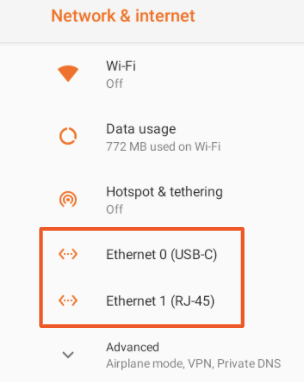
- Make sure only 1 Ethernet is enabled.
- Ethernet USB-C should be ON if you're using a USB-C connection to your terminal.
- Ethernet RJ-45 should be ON if you're using an Ethernet cable connection to your terminal.
- You can also try resetting your Ethernet connection by toggling it off and then on again.
- Note: If you have an Elo V1 or V2, you will only see one Ethernet option.
- On the Ethernet settings page, make sure your Ethernet is toggled On.
- Finally, navigate to your device's Wi-Fi page and confirm that Wi-Fi is Off.

Note: With hardwired devices, Ethernet should always be on, and Wi-Fi should always be off. If your network is self-managed, this may be different, and we encourage you to contact a network administrator for guidance.
Back to top
- Look for the Wi-Fi icon in the top right corner of your device screen to verify if you are connected to the internet.

- Confirm you're connected to the right network by opening your device settings and selecting Wi-Fi under the Wireless & Networks section.

- Choose the secure Toast network that is supported by Toast. It's generally named: "Your Restaurant's Name_Secured". After logging into Toast POS, this will automatically switch over to "Your Restaurant's Name_TOAST".
- Ensure that Wi-Fi is turned on. The toggle will appear colored when enabled and grey when disabled, as shown below:

- When connected, the network name will be displayed with the word "Connected" directly underneath it.
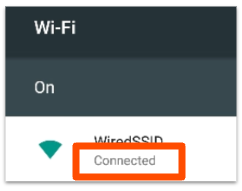
- If Wi-Fi is not enabled, toggle the button to On. Find your network name on the screen below. If Wi-Fi is enabled, look to the right side of the screen to ensure the tablet is connected to the correct network for your store/location.
- Note: If your terminal is connected to Wi-Fi but your payments are pending and will not process, it may be because you're not connected to the secure Toast Wi-Fi network at your restaurant.
Back to top
Toast advises addressing connection problems right away. Many times, these issues have simple solutions, like a disconnected power cable or a tablet not being on the correct Toast Wi-Fi network. Use the following steps to quickly find and fix the problem:
- Ensure that the device is connected to the dedicated Toast Network. (see previous instructions for hardwired or wireless devices)
- Restart your device to rule out any device issues.
- Ensure that it's a Toast network-only issue by checking that your other restaurant networks (such as "guest" or "personal" Wi-Fi) on other devices have an active internet connection through your Internet Service Provider.
- Locate your dedicated Toast router, typically recognized by its black, white, or silver design with "Cisco," "Pronto, (Toast Router)," or "Meraki" branding.
- Ensure that the router's power cord is plugged in and that the router is plugged into an active outlet.
- Check to make sure the router's light icon is white. An orange icon may indicate that the router may not be connected to your internet service provider.
- Restart the router if necessary by unplugging / re-plugging the power cord or pressing the small reset button. The router may take 30-60 seconds to restart, and will show a yellow light before indicating a green light if it has successfully connected to the internet. Note: If you're aware of an internet provider outage, do not restart the router. This will cause issues with printing.
If you're still unable to achieve internet connectivity, start a live chat here with our Customer Support team. Chat is available in Toast Web and Payroll Web (blue support button in the bottom right of every page) and the Support tab in the Toast Now app.
For more information on how to contact support, view How to Contact Customer Support or go to support.toasttab.com.
Back to top
Troubleshoot Internet Connectivity Issues
If you have internet connectivity issues that affect Toast and non-Toast devices, particularly during peak hours, we recommend you assess the following:
- To check the Wi-Fi signal strength on your Toast tablet, look at the Wi-Fi icon in the notification bar at the top of the screen. For optimal performance, the tablet should display four to five bars of signal. If you only see one or two bars, try moving the tablet to a different location or adjusting the position of your Wi-Fi router or access point to be closer to the device.

- Disable any additional devices or services running through your internet connection.
- Using streaming apps like iTunes or other music and video services can slow down your Toast system and prevent tasks from completing properly. Similarly, heavy use of other Wi-Fi networks (like private office or guest networks) that share the same internet connection can also negatively impact Toast's performance.
- Restart the router by unplugging/replugging the device. This will clear up any temporary issues that were causing the router to not perform effectively.
- Contact your ISP to check for any neighborhood/area-wide connection issues or to report a connection issue that is affecting all devices running through their service.
- Consider upgrading to a faster internet package or purchasing a backup 4G Wi-Fi solution.
Back to top
Internet Service Provider (ISP) Ping Info
| Provider | Connection Types | Ping? | DNS Servers |
|---|
| Comcast/Xfinity | cable, fiber | yes | 75.75.75.75, 75.75.76.76 |
| Spectrum/Charter | cable, fiber | yes | 209.18.47.61, 209.18.47.62 |
| Centurylink | DSL, fiber | no | 205.171.3.66, 205.171.202.166 |
| Verizon Fios | fiber | no | |
| Cox | cable, fiber | no | 68.105.28.15, 68.105.29.15 |
| AT&T/SBC | DSL, fiber | no | |
| Frontier | DSL, fiber | yes | 74.40.74.40., 74.40.74.41 |
| Optimum | cable, fiber | yes | 167.206.112.138, 167.206.7.4 |
| Windstream | DSL, cable, fiber | no | |
| Suddenlink | cable, fiber | no | 208.180. 42.100, 66.76. 175.100 |
| HughesNet | satellite (not supported) | no | |
| Waypass Google | fiber | no | |
| Sparklight/Cable One | DSL, fiber | yes | |
| Consolidated Communications | cable, fiber | no | 72.22.1.5, 72.22.1.6 |
| RCN | cable | no | |
Back to top


