In this Article:
If an item has been sent to the kitchen for preparation already and needs to be removed from an order, a void will be required. Actions that send orders to the kitchen are:
Send - causing the order to be sent for preparation
Print - causing the receipt/bill for the order to be printed
Pay - causing the order to be sent for preparation and opening the payment screen
Toast POS provides you with the ability to perform item-level voids or void the entire check. You can void items in an order until a payment is captured. After the payment is captured, you must refund the payment on the items. Cash payments and Toast gift card payments are considered captured at the end of that business day, which is typically set to 4:00 AM. To learn more about refunds, see Issue a Refund.
Note:
- Voiding is a user-specific permission that can be assigned at either the Job or Employee level. If an employee lacks the necessary permission to void an item or check, a manager's override is required to complete the action.
- Employees with the 3.31 Void/Refund Payments (Limited to Same Day Only) permission can void payments made on the same day without requiring manager approval by accessing the payment screen and selecting the Void option.
- For a comprehensive overview of permissions, employees should refer to the Permissions Reference Guide available on Toast Central.
- To prevent negative balances or errors caused by voided items and payments, follow these best practices:
- Always verify whether payment adjustments are needed when voiding items from a check.
- Ensure payments are accurately rectified by accessing the payment screen, canceling, adjusting, and completing the payment process.
- If a transaction needs to be refunded, follow the necessary refund workflow rather than simply voiding the items.
This 3-minute video covers how to create void reasons in Toast Web, as well as how to void individual items on the POS and the entire check.
Back to top
If only a single item needs to be voided, but the remainder of the order will not be altered, an item-level void can be performed.
- Find the check on the POS through one of the following methods:
- Access the Payment Terminal, locate the check, and select Update.
- From Quick Orders mode, select the Lookup button on the top right and enter the check number.
- Select Find Checks under Manager Activities and search by check number and date.
- From the order screen, select the item to be voided by touching the name of the item.
- Once the item is highlighted, select Void.
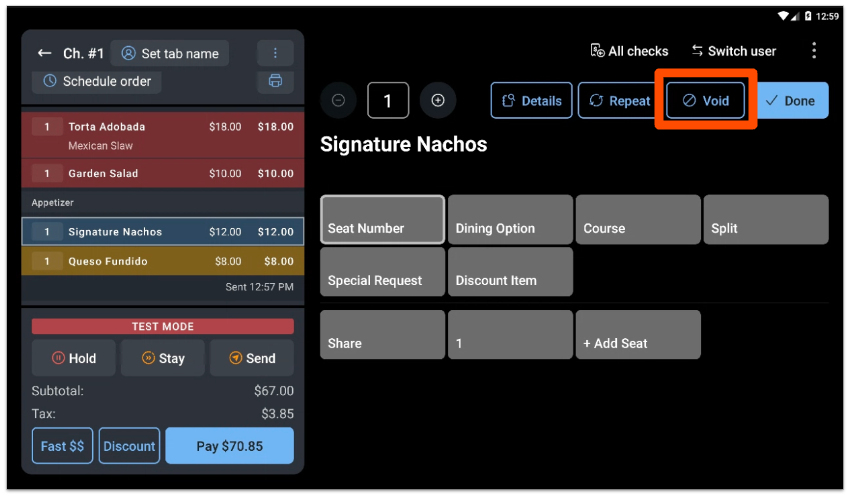
- On the pop-up, confirm you want to Void item.
- If there are void reasons set up at your restaurant, you will be required to select a reason for your void. Learn more about void reasons in this Toast Central article, Add Void Reasons.
- Once confirmed, the item appears marked out in the check details with the words VOIDED.
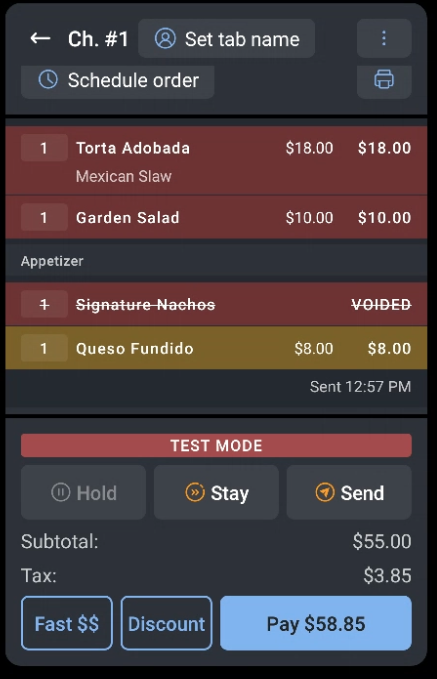
Note: If you've voided an item on a check where payment has already been made, you can adjust the payment to reflect those changes.
Want to practice? Select the button below! For an optimal interactive experience, we suggest accessing with a computer.
Back to top
A user with adequate permissions to void items can partially void items with quantities of more than one.
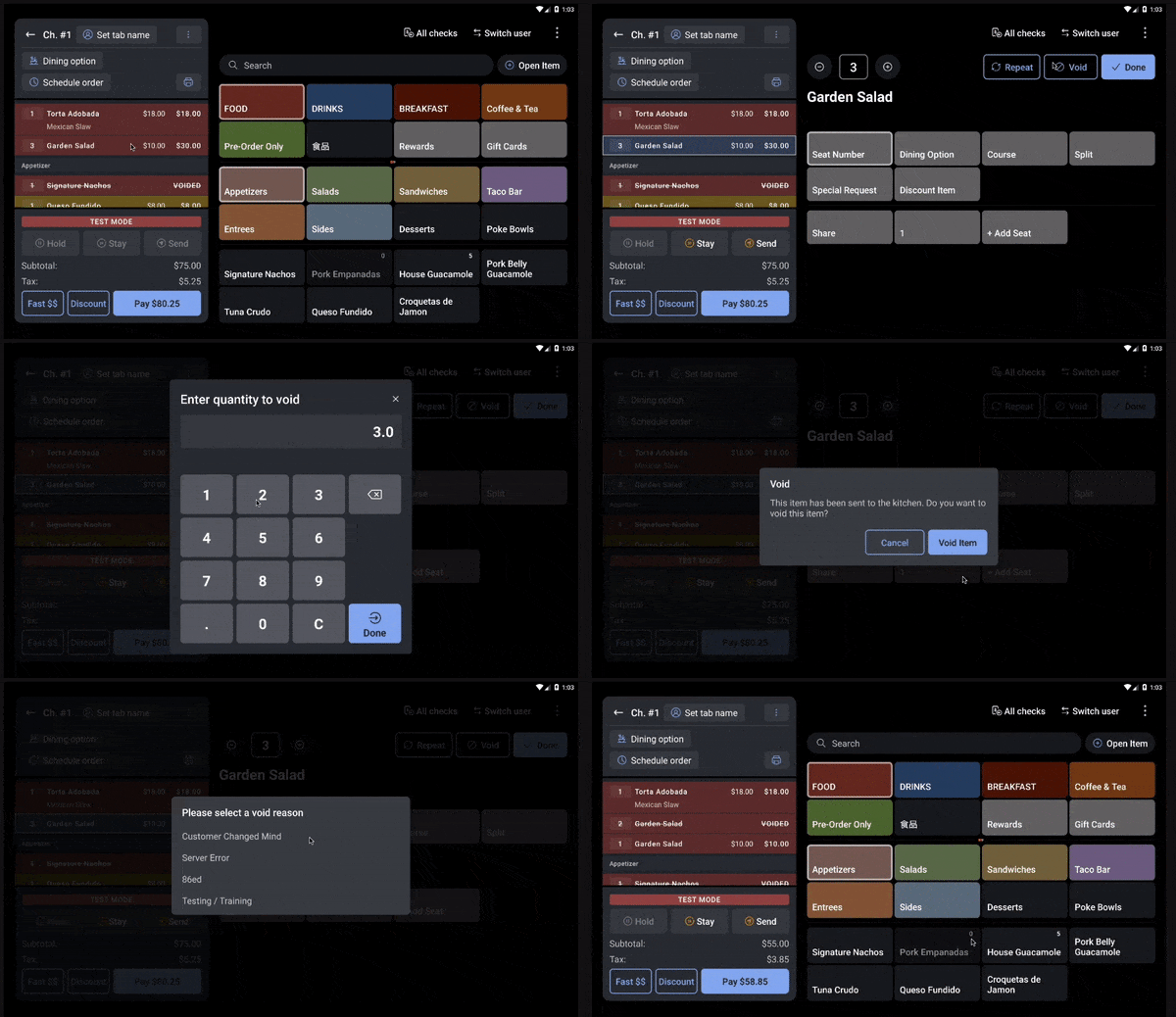
Follow the video example below to learn how to void multiple items at once on a check. In this example, the guest has ordered three Garden Salads. The guest wants to cancel 2 of the 3 Garden Salads, so you need to void all but one.
- Select Garden Salad to edit the item, and then select the Void button.
- The POS recognizes that the item has a quantity greater than one and will prompt you to key in the quantity to void.
- Select Done to confirm the void.
- Once confirmed, you may have to select a reason to void (if void reasons are configured).
Entering the quantity for the check to be updated and to reflect the remaining order, which is now one Garden Salad.
Note: If you've voided an item on a check where payment has already been made, you can adjust the payment to reflect those changes.
Back to top
- To void multiple items on a check, first, make sure that your device is configured to edit multiple items. To do this, navigate to Device Setup from the homepage of the Toast app.
- Scroll to Default Item Selection Mode in the Order Screen section, and ensure that Multiple items is selected.
- Next, on an order, select the items that need to be voided. They will appear highlighted as shown below.
- Select Void, then confirm that you want to void the items.
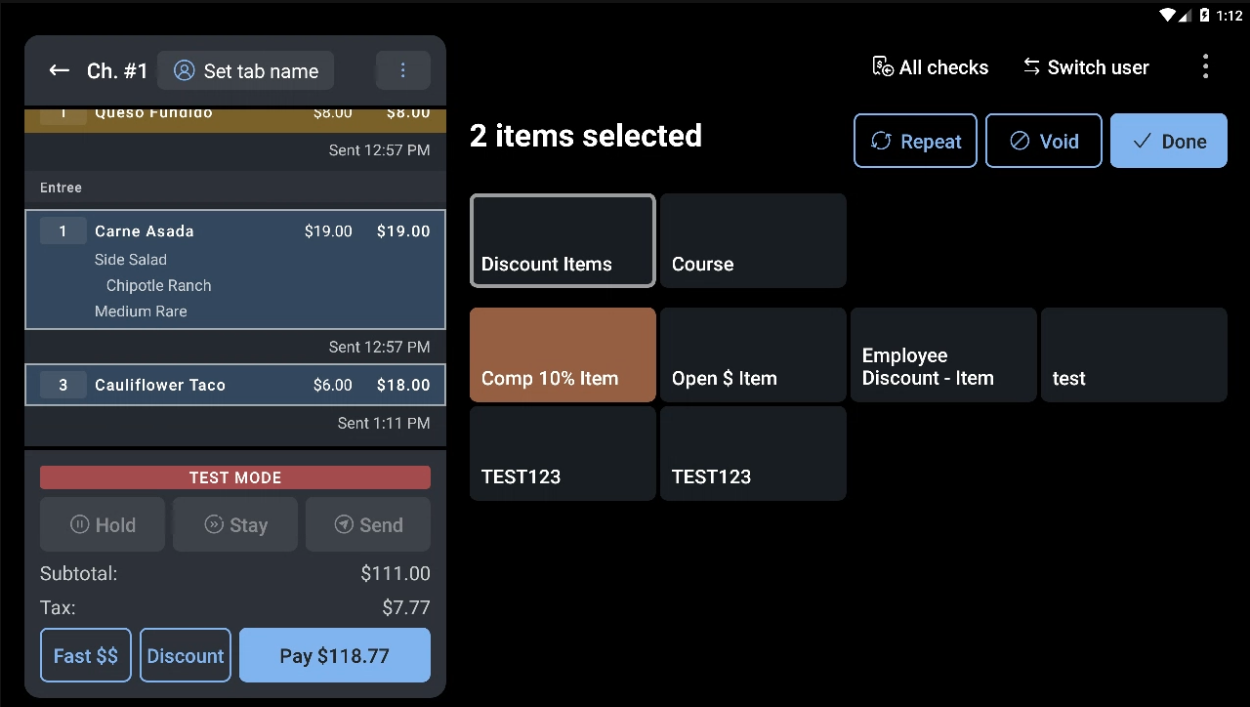
- The voided items will then appear crossed off, and their amounts will be removed from the check's total.
Note: If you've voided an item on a check where payment has already been made, you can adjust the payment to reflect those changes.
Back to top
In some cases, an entire order may need to be voided.
- Find the check on the POS using one of the following methods:
- Access the Payment Terminal, locate the check, and select UPDATE.
- From the Quick Order screen, select the Lookup button on the top right and enter the check number.
- Select Find Checks under Manager Activities and search by check number and date.
- From the check details, select the overflow menu button in the top right corner (three dots).
- From the drop-down menu, select Void order.
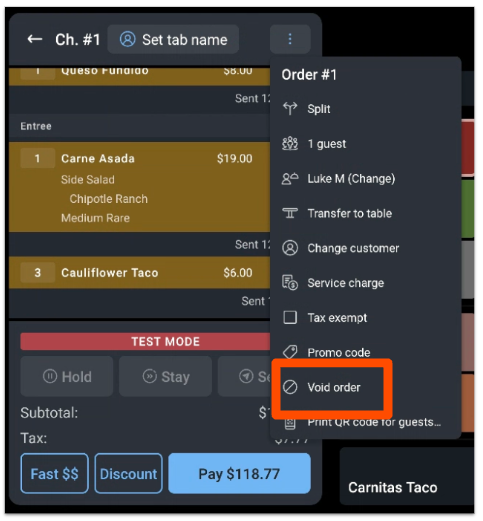
- If any void reasons are configured, select the appropriate option before the order is voided.
Check out this Toast Central article, Bulk Check Management, to learn more about voiding checks in bulk.
Note: If you've voided a check where payment has already been made, you can adjust the payment to reflect those changes.
Back to top
A number of scenarios can arise in which a user may need to void the payment or payments that were taken to satisfy a guest's bill. This can easily be done with a few taps from the ordering screen. If you need to void a payment to refund a guest's money, follow the steps below. Voiding a payment differs from refunding a transaction—selecting 'Void' cancels the payment but retains details of the order. If you need to void a payment to refund a guest's money, follow the steps below.
- Navigate to Closed Checks in the payment terminal and locate the check you want to void payment on.
- Note: If you're voiding a cash payment on a device locked to a cash drawer, make sure the payment is voided on that drawer to avoid cash discrepancies. If you voided a cash payment from a different device, follow the steps in the FAQ section of this article to correct the error. To provide you with greater control and security, non-cash-taking devices can not void cash transactions unless specifically enabled in device settings.
- Open the check, and select Pay to enter the payment screen of the check. This is the screen where the payment can be viewed and adjusted if necessary.
- Select Void. This action cannot be undone, so as a safeguard against accidental voids, Toast will prompt the user to confirm the action before it is performed.
- If Digital Receipts is turned on, you may be prompted to select a receipt option for the void. This would confirm to the guest that the void was processed for their records. Learn more about digital receipt settings in this Toast Central article, Get Started With Digital Receipts.
- Once a selection is made, you'll be directed back to the payment screen, where you can enter a new payment or follow the steps to void the entire check.
Back to top
An authorized credit card payment can only be voided and/or adjusted if the payment has not been batched or captured, which typically happens during the end-of-night credit card batch process.
- Navigate to Closed Checks and locate the check you want to void payment on.
- Open the check and select Pay to enter the payment screen of the check. This is the screen where the payment can be viewed and adjusted if necessary.
- Select the card payment you wish to adjust.
- Select the Adjust button, and then choose the appropriate option to adjust the balance.
- Select Done and close the check.
For more detailed instructions on adjusting credit card payments, see this Toast Central article, Adjust Credit Card Payments.
Back to top
Yes, it is common to have a pending transaction for a voided payment within the banking world. The card may be pre-authorized for the amount that is swiped or keyed, and funds can be held from the guest's available balance.
The bank's system is not aware that the payment is voided. It waits a pre-determined amount of time (varies by bank) and, if not settled within that time, releases the money back.
How quickly a voided payment shows up in the account as pending and how quickly the voided payment will clear itself from the account are all dependent on each bank's own policy about these timeframes. Typically, only a few business days are allowed before a pending charge must be released back to the customer if it does not settle. Voided payments can take up to 1-2 weeks before the bank refunds the money to the customer. If you see a payment as "void" in Toast, advise your guest to contact their bank if the refund is taking longer than expected. Sometimes, voids look a little different than a refund on a bank statement, and your guest may overlook it.
Issuing a refund is something that can only be done with payments that have already been captured and batched. If the payment has not been captured and batched, the payment should be voided, and your customer is not charged.
Note: Voided payments may still show as a pending amount on your customer's banking statement. Depending on your customer's bank, it should drop off in one to three business days.
If you've voided a cash payment that was locked to a cash drawer from a different device, you'll see a cash overage or shortage for that drawer. To fix this error for cash reporting:
- Navigate to the Voided Payments report by selecting Reports > Cash and loss management > Voided payments in Toast's back-end.
- Adjust the date and location filters on the report, and check to see if any cash voids match up to the overage or shortage amount on the cash drawer.
- Once you've identified the check with the void, you can adjust your balance with a cash out/cash in entry. You may wish to add a note to clarify the entry, such as "Cash correction for check #4" -- or whatever works for your restaurant. To learn more about adjusting your cash drawer balance, see this Toast Central article, Adjust Starting Cash Drawer Balance.
One of our employees accidentally voided a payment. Can we reverse that void, or unvoid the payment?
To reverse or unvoid a voided payment, follow these steps:
-
-
- Locate the check in question in Find Checks.
- Select Actions > Void Reversal.
- If you do not see the option, check to ensure you have the 3.31 Void / Refund Payments (Limited to Same Day Only) permission on your employee profile.
- If you have the necessary permissions but cannot complete the void reversal, please contact Customer Care to request a void reversal. Be sure to have the check information ready.
Note: A void reversal must generally be processed on the same day the voided payment was made. Certain payment types may have restrictions on void reversals through the standard refund workflow.
Receipts will only automatically print if a void is successfully processed immediately. If there is any delay in processing, no receipt will print. This is to avoid delays for your servers while waiting for the void to process, and to avoid confusion if the void is not successfully processed.
If a void receipt did not automatically print and a guest would like a receipt showing their voided payment, you can manually print a void receipt on the POS by navigating to their order, selecting Pay, then Receipt. Next, select the desired receipt type and select Done.
Back to top
Additional Resources


