 |
This feature is only available for Toast POS customers with Toast Gift Cards and the latest version of Toast Online Ordering enabled.
|
Gift card payments for online orders can be voided using the Find Checks & Issue Refund feature in Toast Web.
Note: You will need to have the Void / Refund Payments permission to complete the following steps. Additionally, if the check is from a previous day, you will need to issue a refund following the steps outlined in Issuing a Refund.
- In Toast Web, navigate to the Payments > Transactions & refunds > Find Checks & issue refund.
- Use the tabs at the top of the screen to locate the check with the gift card payment.
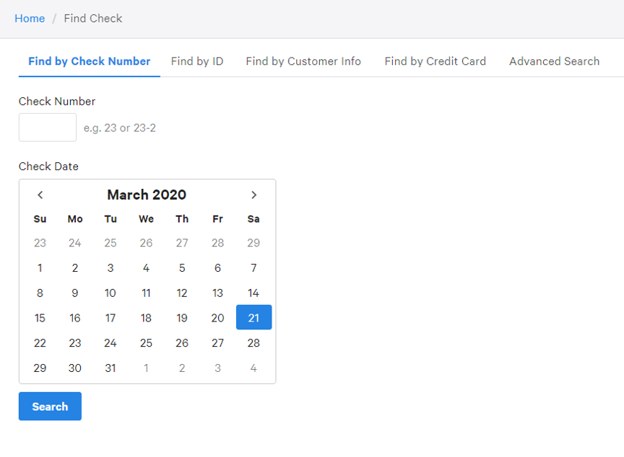
- In the search results, navigate to the check with the gift card payment and select the Actions menu.
- Then, select Void.
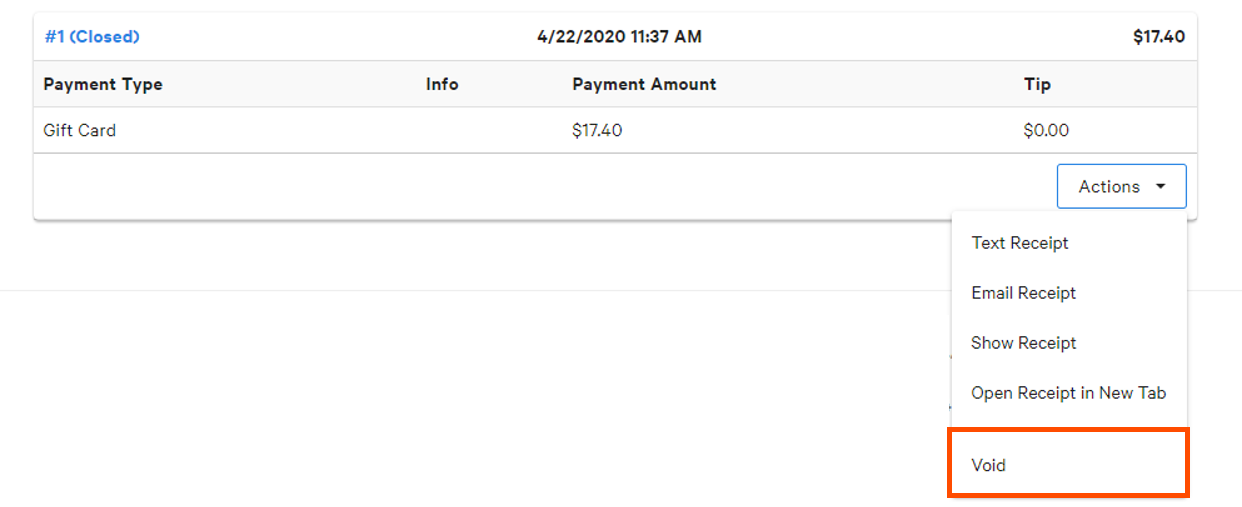
Note: The Void option will appear for gift card payments taken that same business day. If the payment occurred on the previous day, a Refund option will be available. - Select OK to finalize the voided gift card payment when prompted.
Back to top
You can verify a voided gift card payment using a Void Redemption in the Gift Card Balances report.
- In Toast Web, Reports > Payments > Gift card balances.
- Enter the gift card number into the search field and select it from the search results.
- On the Card Details page, a line item for Void Add Value will appear for the amount that was voided from the card.
To void an online order that was paid with a gift card from your POS device, follow the steps below. Again, you will need to have the Void / Refund Payments permission.
- Navigate to the Payment Terminal.
- Select the Closed Checks tab at the top of the screen.
- Select the check with the gift card payment and choose Update.
- Select the items on the order screen and select Void.
- Select Yes to confirm the item void.
- Then, select Pay($).
- Select the gift card payment and choose Remove.
- Select Close when finished.


